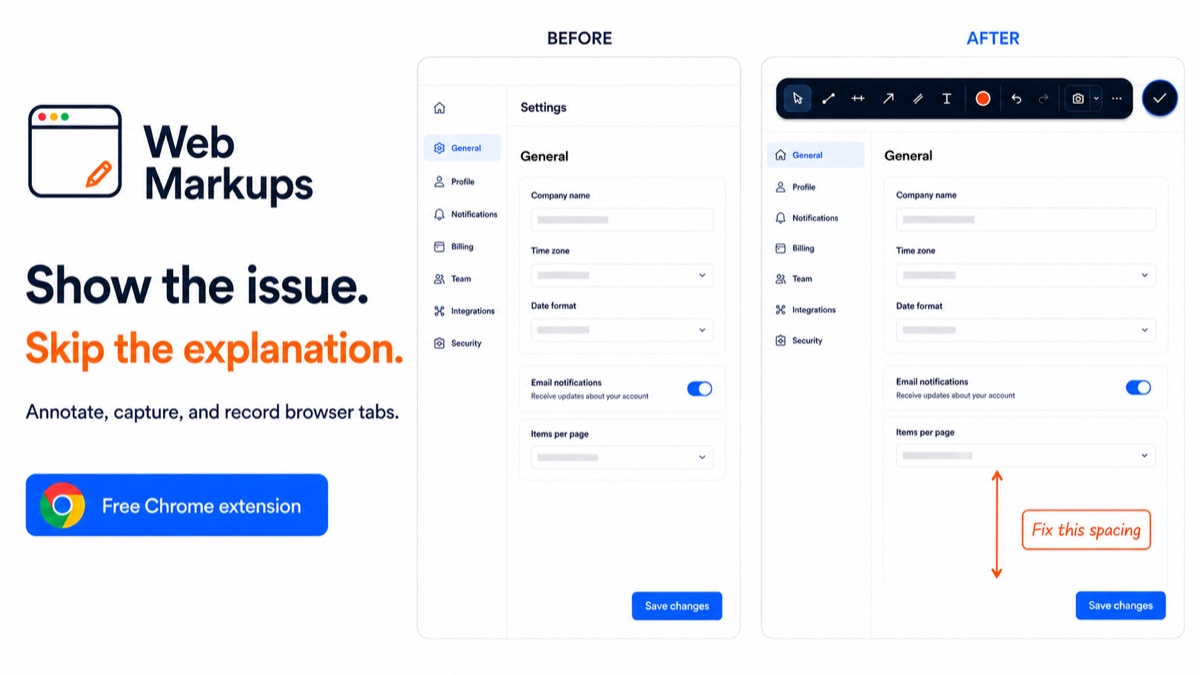
How do you annotate a webpage in Chrome? Open Web Markups, draw an arrow or line, and add a text note beside the detail you want to explain. Capture the annotated page, then use Copy image to paste the screenshot where you discuss the work.
See annotations on a real webpage
This short, silent overview shows the drawing toolbar, annotations, and a captured screenshot.
Video description
The toolbar appears beside charts with annotations already drawn. The drawing color palette opens while a recording timer is visible. A captured screenshot shows the annotations and free-plan watermark. The closing card explains that captures are local by default, recording has no audio, and cloud uploads require an explicit choice.
Drawing tools for precise explanations
Lines and levels
Click a start point and an end point to create a trendline. Horizontal levels use the same two-point flow while keeping both endpoints aligned.
Arrows and channels
Use directional arrows for interface callouts and parallel channels for ranges, boundaries, or chart movements.
Text notes
Place a note beside the relevant page element. Choose a font, size, and text color, with bold, italic, and underline options. In Browse mode, double-click a saved note to edit it.
Editable instead of disposable
Select an annotation to reveal only the handles needed for editing. Drag an endpoint to move that point, drag the body to move the full object, change its color, duplicate it, undo or redo, or delete it. Clicking away removes the handles and leaves a clean line or note.
Low friction on real websites
Drag the floating launcher to a convenient spot on the page. Choose Browse when you want to click links, type, or scroll; select a markup when you want to edit it. Hide Web Markups when you want a clear view of the page.
Return to the same annotation later
Completed annotations are saved locally in your Chrome profile for that page address. Return to the same page and open Web Markups to see them again. Hiding the toolbar does not delete your saved annotations. Annotations do not sync between devices.
Capture the explanation
Use the camera button to capture the visible tab, or choose Area to focus on a specific part of the page. In the screenshot preview, choose Copy image and paste into an app that accepts images, or download a PNG. Copy image is available to all users. The active toolbar may appear in the capture.
Need to show a sequence? Record the tab or a selected area without microphone or system audio. Follow the annotation guide for the complete mark-up-and-capture workflow.
Useful annotation scenarios
- Mark a rise, decline, threshold, or anomaly on an analytics dashboard.
- Point out spacing, hierarchy, or responsive-layout feedback on a website.
- Show the exact control involved in a support question.
- Identify the visible symptom of a browser bug before capturing evidence.
- Leave a persistent private visual reference on a frequently revisited page.
Webpage annotation questions
Does Web Markups modify the webpage?
Your marks appear in an overlay above the webpage. They do not publish changes to the website. Hide Web Markups to view the page without your annotations.
Are annotations uploaded?
No. Annotation data remains in local Chrome extension storage. Cloud storage on both plans applies only to screenshots and recordings the user explicitly saves to cloud.
Can annotations be turned off quickly?
Yes. Closing Web Markups removes the annotation layer from view without deleting the stored drawings.