Quick answer: Click the Web Markups pencil launcher, choose Arrow, Trendline, Level, Channel, or Text, and place the annotation. Choose Browse to select and edit it. Turning Web Markups off hides the overlay without deleting the saved annotation.
1. Open Web Markups on a webpage
- Install Web Markups from the Chrome Web Store using the button above.
- Open a regular webpage where Chrome allows extensions. If it was already open during installation, reload it.
- Click the Web Markups extension icon if the floating pencil launcher is not already present.
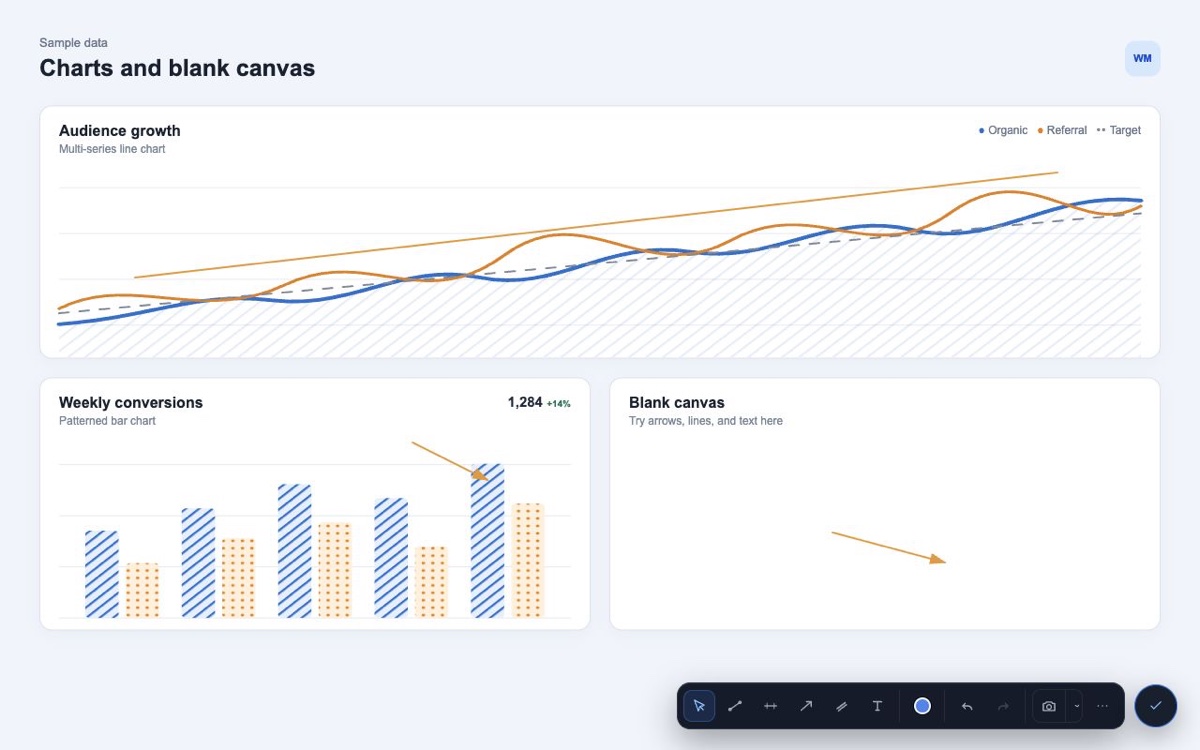
- Click the pencil launcher on the page. The drawing toolbar opens and starts in Browse mode.
Web Markups does not run on protected Chrome pages such as chrome://extensions or the Chrome Web Store itself.
2. Choose the right drawing tool
Trendline or Level
Click the first point, then click the second point. Level keeps the two endpoints aligned horizontally.
Arrow or Channel
Click and drag from the starting point to the ending point. Channel places a pair of parallel lines.
Text
Click the page and type a note. Choose the font, size, and text color; use bold, italic, or underline where useful. Click Save or press Enter to place it. Use Shift+Enter for a new line.
Choose Browse after drawing to select annotations or interact with the webpage.
3. Select and edit an annotation
- Choose Browse.
- Click a line, arrow, channel, or text note. Only the selected markup shows editing handles.
- Drag an endpoint to change that point, or drag the markup body to move the complete object.
- Use the active color control to change the selected markup.
- To edit a saved text note, double-click it while Browse is selected. Update its words or formatting, then click Save or press Enter.
- Use Undo or Redo to move backward or forward through recent changes.
- Open More and choose Delete, or use the supported Delete/Backspace key while the markup—not a webpage text field—is selected.
4. Continue using the webpage normally
Browse mode preserves ordinary webpage clicks, typing, scrolling, and navigation unless the pointer is interacting with an annotation. Click the launcher again when you want to hide Web Markups completely. Hiding it does not erase the saved annotation collection.
5. Return to saved annotations
Completed annotations are stored locally for the current page. Return to the same page and activate Web Markups to restore supported annotations. A different path, query string, browser profile, or extension installation can have a different local annotation collection.
6. Capture and copy your screenshot
When the markup says what you need, use the camera button for a visible-tab screenshot or open its arrow menu for Area or Video options. The screenshot or recording includes visible annotations and the active toolbar. Selection borders, resize handles, and temporary instructions are removed from the exported area.
- Capture the visible tab or select an area for a screenshot.
- In the screenshot preview, click Copy image.
- Open an email, chat, or bug report that accepts pasted images and press Ctrl+V on Windows or Command+V on Mac.
Copy image is free and copies the screenshot to your clipboard. You can also download the PNG. If the destination does not accept pasted images, attach the downloaded file instead.
Continue with the screenshot guide or the browser-tab recording guide.
Annotation troubleshooting
The launcher is missing
Confirm the extension is installed and enabled, reload the webpage, and check that Chrome grants Web Markups site access for that page. Protected browser pages cannot host the toolbar.
The webpage will not respond normally
Choose Browse after drawing. If the pointer is over a selected annotation, click an empty area of the page to clear its handles.
A saved annotation does not appear
Confirm that you returned to the same page address and the same Chrome profile. Annotation data is local and is not synchronized through the Web Markups account.